
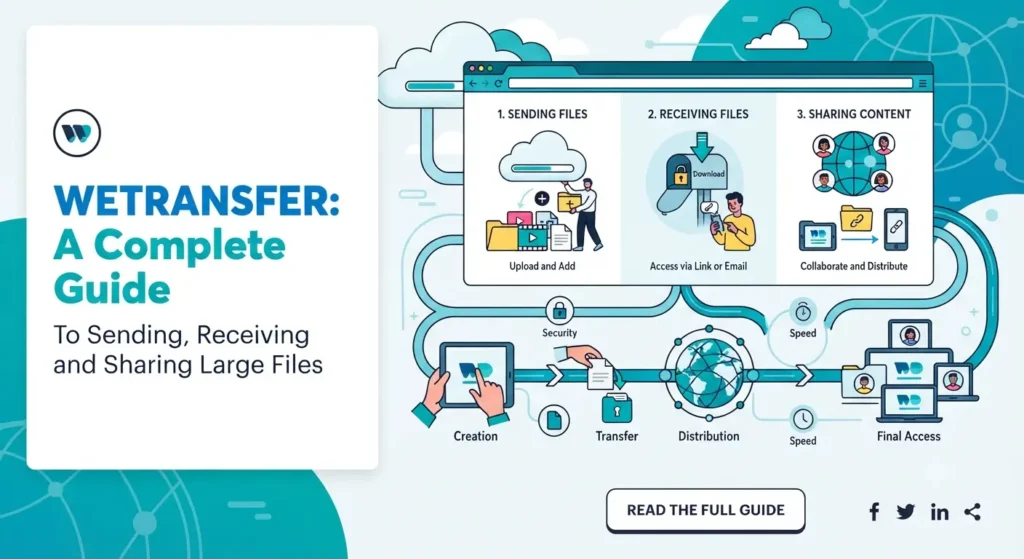
WeTransfer: A Complete Guide to Sending, Receiving and Sharing Large Files.
Introduction
Sending a large file through email can quickly become frustrating. A high-resolution video, a folder of photographs, a presentation or a collection of design files may exceed the attachment limit of a regular email service. Compressing files or splitting them into smaller parts can also take extra time.
WeTransfer offers a straightforward way to share files online without relying on traditional email attachments. Users can upload their files, generate a download link or send them directly to recipients by email. The recipient can then access the shared files without necessarily creating an account.
The platform is useful for individuals, students, photographers, designers, businesses and creative teams that regularly exchange digital content.
However, understanding how transfers work, what the free plan includes, how long links remain available and which security options are offered can help users avoid common problems.
This guide explains WeTransfer’s main features, sending and receiving process, account options, security practices and practical uses.
What Is WeTransfer?
WeTransfer is an online file-sharing and transfer service that allows people to send digital files to others through the internet.
It is designed to make file delivery simple, particularly when the files are too large or inconvenient to attach to a regular email.
Instead of sending files as traditional attachments, users upload them to WeTransfer’s platform. The service then provides a way for recipients to download the uploaded content.
WeTransfer supports different types of files, including:
-
Photographs and images.
-
Videos and audio recordings.
-
PDF documents.
-
Word and Excel files.
-
PowerPoint presentations.
-
ZIP archives.
-
Graphic design files.
-
Creative project files.
-
Other common digital formats.
One of its main advantages is that recipients generally do not need to register for an account just to download a shared transfer.
WeTransfer is particularly useful when someone needs to deliver a collection of files without dealing with multiple email attachments.
How Does WeTransfer Work?
WeTransfer works through a simple upload-and-share process.
The sender selects the files they want to share and uploads them to the platform. Once the upload is complete, WeTransfer makes the files available through an email delivery or a downloadable transfer link.
The recipient can open the transfer and download the files to their device.
Here is the general process:
-
Select files: Choose documents, images, videos or folders from your device.
-
Upload content: Add the selected files to the WeTransfer transfer window.
-
Choose a delivery method: Send the transfer directly by email or generate a shareable link.
-
Complete the transfer: Wait for the upload to finish.
-
Share or receive: The recipient gets an email notification or the sender shares the generated link.
-
Download files: The recipient opens the transfer and downloads the available content.
WeTransfer uploads a copy of the selected files. Your original files remain on your device, so uploading does not move or delete your local documents.
The recipient’s ability to download files depends on the transfer remaining available and any access restrictions set by the sender.
Main Features of WeTransfer
WeTransfer offers more than a basic file-upload option. Its features support different sharing requirements, from occasional personal transfers to professional file delivery.
1. Large File Transfers
One of the main reasons people use WeTransfer is to send files that are too large for ordinary email attachments.
For example, a video editor may need to deliver a collection of high-resolution videos to a client. Attaching each file separately to an email would be inconvenient.
With WeTransfer, the editor can upload the files together and share one transfer link.
The maximum transfer size depends on the subscription plan. Free accounts currently have a smaller allowance, while paid plans support larger transfers.
2. Email-Based File Delivery
WeTransfer allows users to send files directly to another person’s email address.
The sender enters their own email address, the recipient’s email address and the files they want to share.
After the upload finishes, the recipient receives an email containing the download information.
WeTransfer also sends confirmation messages to the sender, including notifications when the transfer is downloaded.
An important privacy detail is that recipients do not see one another’s email addresses when the transfer is sent through separate email notifications.
3. Shareable Download Links
Another useful feature is link-based sharing.
Instead of entering individual email addresses, users can generate a download link and distribute it through another communication channel.
For example, you can share the link through:
-
WhatsApp.
-
Email.
-
Microsoft Teams.
-
Slack.
-
Workplace messaging tools.
-
Project management platforms.
This method is useful when the same collection of files needs to reach several people.
However, anyone who obtains an unrestricted link may be able to access the transfer. Consider password protection or restricted access when sharing sensitive content.
4. Multiple File Uploads
WeTransfer supports uploading several files within a single transfer.
This is useful when documents, images and other content belong to the same project.
For example, a graphic designer might upload:
-
A logo in PNG format.
-
An editable design file.
-
A PDF brand guide.
-
Social media graphics.
-
Supporting project documents.
Instead of creating separate transfers, these files can be grouped together.
WeTransfer also supports folder uploads on desktop. If preserving a folder structure is important, follow the platform’s current folder-upload instructions or compress the folder into a ZIP archive.
5. File Previews
WeTransfer offers preview capabilities for supported file formats.
Depending on the format, users may be able to preview images, videos, audio and PDFs before downloading them.
This can be convenient when someone receives a large collection of files but only needs to inspect a few items.
Preview availability may depend on the file format, size and plan.
6. Password Protection
Password protection adds another layer of access control to a transfer.
When enabled, recipients must enter the correct password before they can access the shared files.
This is particularly useful when sharing business documents, project files or other content that should not be openly accessible.
WeTransfer’s current help information states that password protection is available across its plans, including Free.
The password should be shared through a separate communication channel rather than included in the same message as the transfer link.
7. Transfer Management
Users can manage their sent and received transfers through their account.
Depending on the plan, available controls may include:
-
Reviewing transfer status.
-
Checking whether recipients downloaded files.
-
Managing active transfers.
-
Updating password settings.
-
Changing expiration dates.
-
Recovering eligible expired transfers.
These features can help professionals manage several file deliveries without losing track of their status.
8. File Requests
WeTransfer also offers a file-request feature.
This allows someone to request files from other people through a dedicated upload link.
For example, a marketing agency may need photographs and brand documents from a new client. Instead of asking the client to send multiple emails, the agency can create a file request and share its link.
The client opens the request, selects the files and uploads them.
The requester can then receive a notification when the upload is complete.
This feature is useful for collecting project assets, documents, photographs and other materials.
How to Send Files Using WeTransfer
Sending files is one of the easiest things to do on WeTransfer. The process is similar across desktop and mobile devices, although some interface options may differ.
Step 1: Open WeTransfer
Visit the WeTransfer website using your preferred browser. You can use a desktop computer, laptop or supported mobile device.
You can also use the official mobile application where available.
Step 2: Select Your Files
Choose the files you want to send from your device.
You can upload different types of content in one transfer, such as photographs, PDFs, videos and documents.
Before uploading, check the total file size against your plan’s transfer allowance.
Step 3: Choose How to Send the Files
WeTransfer offers two main delivery methods:
Email transfer: Enter your email address and the recipient’s email address. WeTransfer sends the download notification directly to the recipient.
Link transfer: Generate a shareable download link and send it yourself through a messaging app, email or another communication channel.
The link option is especially useful when several people need access to the same collection of files.
Step 4: Add a Message if Needed
You can include a short message to explain what the transfer contains.
For example:
“Hi, I’ve uploaded the final website design files. Please download the folder and let me know if you have any questions.”
This can make professional file sharing more organised.
Step 5: Upload and Complete the Transfer
Click the transfer button and wait for the files to upload.
Upload time depends on your internet connection, file size and other technical factors.
Once the process is complete, WeTransfer provides the relevant confirmation or download link.
Step 6: Share the Download Information
If you selected email transfer, the recipient receives an email notification.
If you selected link transfer, copy the generated link and share it with the intended recipient.
Before closing the page, make sure the upload has finished successfully.
How to Download Files From WeTransfer
Receiving files through WeTransfer is generally straightforward. In most cases, the recipient does not need to create an account.
Follow these steps:
-
Open the WeTransfer email or transfer link you received.
-
Check the sender’s identity and the message.
-
Click the download option.
-
Wait for the download to complete.
-
Open the downloaded file or extract the ZIP archive if required.
If the transfer contains multiple files, they may be downloaded together as an archive.
What If the Download Link Does Not Work?
There are several possible reasons:
-
The transfer has expired.
-
The sender deleted the transfer.
-
The link was copied incorrectly.
-
The transfer requires a password.
-
The download is blocked by a browser or network issue.
-
The sender has restricted access to specific email addresses.
If the link has expired, contact the sender and ask them to upload the files again or provide a new transfer.
If a password is required, confirm that you have received the correct password through a trusted channel.
WeTransfer Free vs Paid Plans
WeTransfer offers different subscription options for occasional users, professionals and teams.
The appropriate plan depends on how frequently you share files, how large those files are and how long you need transfers to remain available.
The following comparison reflects the plan information published by WeTransfer in November 2026.
| Feature | Free | Starter | Ultimate |
|---|---|---|---|
| Transfers | Up to 10 or 3 GB total per rolling 30 days | Up to 10 or 300 GB total per rolling 30 days | Unlimited transfers |
| Maximum transfer size | 3 GB | 300 GB | Up to 1 TB per transfer |
| Transfer expiration | Up to 3 days | Up to 3 days | Custom expiry options |
| Password protection | Available | Available | Available |
| Custom branding | Limited | Plan-dependent | Available |
| Transfer management | Basic | Additional controls | Advanced controls |
Plan features and limits can change. Check the current subscription details before purchasing.
Free Plan
The Free plan is suitable for people who occasionally send documents, photographs or smaller project files.
According to WeTransfer’s current plan information, Free allows up to 10 transfers or 3 GB of total usage within a rolling 30-day period.
This is useful for everyday file-sharing needs, but it may not be sufficient for professionals who regularly deliver large video files or design projects.
Starter Plan
Starter is intended for people who need a larger transfer allowance but do not require unlimited transfers.
The current plan information lists an allowance of up to 10 transfers or 300 GB within a rolling 30-day period.
It may suit individuals who occasionally send larger collections of files.
Ultimate Plan
Ultimate is designed for more frequent and professional file-sharing requirements.
It supports unlimited transfers up to 1 TB per transfer, alongside features such as custom expiration, password protection, branded delivery pages and access controls.
This may be useful for agencies, creative professionals and businesses that regularly exchange large project files.
Teams and Enterprise Plans
WeTransfer also provides options for organisations that need collaboration and administrative controls.
Teams includes shared workspaces, team branding controls and administrative features.
Enterprise plans are designed for larger organisations with customised requirements, such as single sign-on, user provisioning, storage arrangements and additional compliance features.
How Long Do WeTransfer Links Last?
Transfer expiration is an important part of using WeTransfer.
A download link is not necessarily permanent. Its availability depends on the sender’s plan and the expiration settings applied to the transfer.
According to the current plan information:
-
Free transfers expire after a maximum of three days.
-
Starter transfers expire after a maximum of three days.
-
Ultimate and higher plans offer custom expiration options.
Once a transfer expires, recipients can no longer use the original link to download its files.
Can You Recover an Expired WeTransfer Link?
Whether an expired transfer can be recovered depends on the sender’s plan and the transfer’s eligibility.
If the original transfer cannot be recovered, the simplest solution is to ask the sender to upload the files again.
For important business documents, it is better to download and save the files promptly rather than relying on the transfer link as long-term storage.
WeTransfer is primarily a file-transfer service, not a permanent replacement for cloud storage or a document-management system.
Is WeTransfer Safe to Use?
WeTransfer provides several security measures designed to protect files during transfer and storage.
Its security documentation states that files are encrypted during transfer using TLS 1.2 or TLS 1.3 and encrypted at rest using AES-256.
The company also describes its information security programme as based on ISO/IEC 27001 and states that it conducts regular penetration testing.
These measures are important, but no online service should be treated as completely risk-free.
Use Password Protection for Sensitive Files
If you are sharing confidential documents, enable password protection where appropriate.
Send the password through a separate channel so that someone who receives the transfer link alone cannot automatically access the content.
Check the Sender Before Downloading
Unexpected transfer emails can sometimes be used in phishing attempts.
Before clicking a download link, consider:
-
Do you recognise the sender?
-
Were you expecting the files?
-
Does the message make sense?
-
Does the link lead to the genuine WeTransfer service?
-
Is the message asking for unusual personal or payment information?
If anything seems suspicious, contact the sender through a separate, trusted channel.
Avoid Publicly Sharing Confidential Links
A transfer link should be treated like a key to the files it contains.
Do not post confidential transfer links in public groups, social media comments or open websites.
Use restricted access or password protection when available.
Understand File Retention
WeTransfer’s security information explains that retention depends on the transfer type and plan.
Its current policy states that non-recoverable user content is permanently deleted within 48 hours after its selected expiration date. If Recoverable is enabled, the retention period can extend to one year after expiration.
These details may change, so review the current privacy and retention policy when sharing important information.
Practical Uses of WeTransfer for Different Users
WeTransfer is useful across several industries because almost every type of digital work involves sharing files at some point.
1. Photographers and Videographers
Creative professionals often work with high-resolution images and video files that are too large for regular email attachments.
They can use WeTransfer to deliver edited photographs, video projects and collections of original files to clients.
For example, a wedding photographer could send a collection of edited photographs through a single transfer link rather than attaching images individually.
2. Graphic Designers
Designers regularly share logos, illustrations, branding documents and editable project files.
WeTransfer makes it easier to deliver these materials together, particularly when a project includes multiple formats.
A designer can upload the final logo files, PDF brand guidelines and social media designs in one transfer.
3. Digital Marketing Agencies
Marketing agencies frequently exchange creative assets with clients and internal teams.
Common examples include:
-
Social media graphics.
-
Advertising videos.
-
Website images.
-
Campaign presentations.
-
Marketing reports.
-
Brand guidelines.
A file-request link can also help agencies collect the content they need from clients before starting a project.
4. Students and Teachers
Students may need to submit presentations, research documents, videos or design assignments.
Teachers can also use file-sharing tools to collect educational material and distribute larger resources.
WeTransfer can be a convenient option when email attachments are not practical.
5. Businesses and Remote Teams
Remote teams often work across different locations and need to exchange project documents.
WeTransfer can support tasks such as delivering reports, sharing presentations and sending large creative assets.
However, organisations handling sensitive or regulated information should evaluate their internal security, privacy and compliance requirements before selecting a file-sharing service.
Common WeTransfer Problems and How to Fix Them
Although the platform is designed to make file sharing simple, users may occasionally experience upload, download or account-related problems.
Here are some common issues and possible solutions.
1. WeTransfer Upload Is Stuck
An upload may stop progressing because of an unstable internet connection, browser issue or unusually large file.
What you can try:
-
Check your internet connection.
-
Refresh the page and try again.
-
Close unnecessary browser tabs.
-
Try another supported browser.
-
Upload smaller batches if practical.
-
Check whether your transfer allowance has been reached.
Avoid closing the browser while an important upload is still running.
2. WeTransfer Download Is Slow
Download speeds depend on factors such as internet connectivity, network congestion and the recipient’s device.
Try using a stable connection, pausing other large downloads and restarting the download if it fails.
Remember that WeTransfer states that subscription plans do not automatically provide faster transfer speeds. Internet connection quality remains an important factor.
3. WeTransfer Says the Transfer Has Expired
This usually means the download link is no longer active.
Check the expiration information in the original email. If the transfer has expired, contact the sender and ask them to upload the files again or provide a new link.
4. Recipient Cannot Find the Transfer Email
Sometimes a transfer notification ends up in the spam, junk or promotions folder.
Ask the recipient to:
-
Check their spam folder.
-
Search their inbox for WeTransfer.
-
Confirm that the sender entered the correct email address.
-
Ask the sender to resend the transfer if necessary.
A shareable link can also be used as an alternative delivery method.
5. WeTransfer Is Not Accepting the Files
If an upload does not work, check the total size and the file selection.
Make sure the transfer is within your plan’s limits. Also check whether your browser has permission to access the selected files.
If the problem continues, try a different browser or device.
6. WeTransfer Is Asking for a Verification Code
WeTransfer may require email verification when sending files or accessing certain features.
Check the email account associated with your transfer, locate the verification message and follow the instructions.
If you do not receive the code, check your spam folder and confirm that you entered the correct email address.
WeTransfer Alternatives: What Other File-Sharing Tools Can You Use?
WeTransfer is not the only way to share files online. Several other services provide file transfer, cloud storage and collaboration features.
The best alternative depends on whether you want to send a one-time collection of files, maintain long-term storage or collaborate with a team.
| Platform | Main purpose | Useful for |
|---|---|---|
| Google Drive | Cloud storage and file sharing | Documents and ongoing collaboration |
| Dropbox | Cloud storage and synchronisation | Managing and sharing project files |
| Microsoft OneDrive | Cloud storage and Microsoft 365 integration | Business documents and team workflows |
| SwissTransfer | Large-file sharing | Sending files through temporary links |
| Send Anywhere | File transfer between devices | Quick transfers across devices |
Google Drive
Google Drive is a cloud storage service that allows users to upload files, organise folders and share access with other people.
It is particularly useful when recipients need ongoing access to documents rather than a temporary download link.
Dropbox
Dropbox supports file storage, sharing and synchronisation across devices.
It may suit professionals who regularly work with shared folders and need to manage project files over time.
Microsoft OneDrive
Microsoft OneDrive integrates with Microsoft’s productivity ecosystem.
It can be a convenient option for organisations that already use Microsoft 365 applications.
SwissTransfer
SwissTransfer is another service designed for sharing large files through download links.
It may be worth considering when looking for an alternative dedicated to temporary file delivery.
Send Anywhere
Send Anywhere focuses on transferring files between devices.
It can be useful when sharing content between phones, computers and other supported devices.
Which alternative should you choose?
If you only need to send files to someone occasionally, WeTransfer may be sufficient. If you need permanent file storage, Google Drive or Dropbox may be more suitable. For businesses already using Microsoft 365, OneDrive can fit naturally into existing workflows.
Conclusion
WeTransfer provides a convenient way to send large files without relying on traditional email attachments. Its combination of email delivery, shareable links, multiple file uploads, password protection and file requests makes it useful for individuals and professionals alike.
Photographers can deliver image collections, designers can share project files, agencies can exchange marketing assets and businesses can distribute documents through a straightforward transfer process.
The Free plan is suitable for occasional sharing, while paid plans offer larger allowances, longer transfer availability and additional management features.
However, users should remember that WeTransfer is primarily a file-transfer service rather than permanent cloud storage. Check link expiration dates, protect sensitive transfers and download important files promptly.
When used with sensible security practices, WeTransfer can make everyday digital file sharing considerably easier.
What is WeTransfer used for?
WeTransfer is used to send and receive digital files online. It supports documents, photographs, videos, audio files, design projects and other formats through email delivery or shareable download links.
Is WeTransfer free to use?
Yes. WeTransfer offers a Free plan. Its current allowance is up to 10 transfers or 3 GB of total usage within a rolling 30-day period. Paid plans provide higher allowances and additional features.
Does the recipient need a WeTransfer account?
Generally, no. Recipients can download files through a transfer link without creating an account. However, the sender needs a verified email address to send files under the current requirements.
What is the maximum file size on WeTransfer?
The Free plan supports transfers up to 3 GB. Starter supports up to 300 GB per transfer, while Ultimate supports transfers up to 1 TB. Check the current plan information because limits can change.
How long does a WeTransfer link remain active?
Free and Starter transfers expire after a maximum of three days. Ultimate and higher plans offer custom expiration options. The actual availability depends on the settings applied to the transfer.