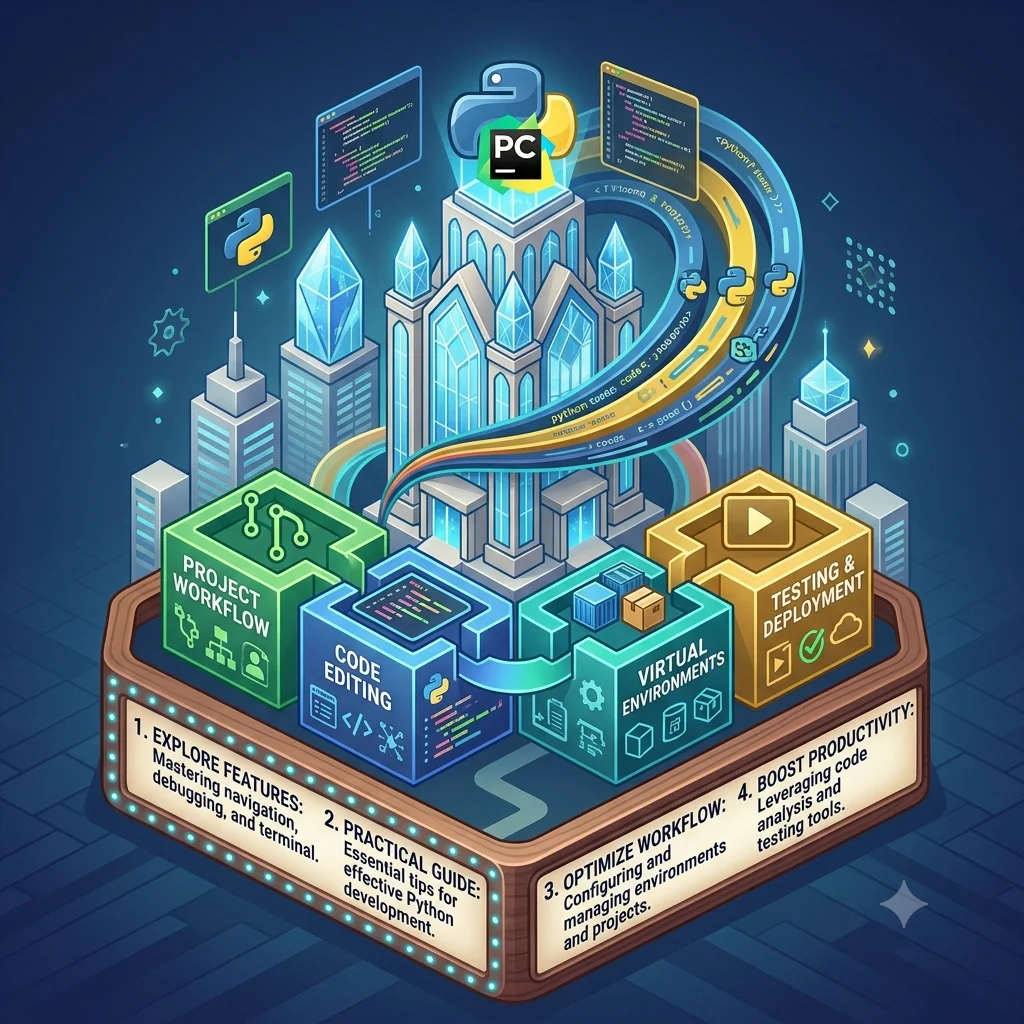
PyCharm Explained: A Practical Guide to Python Development.
Introduction
Python is used for web development, automation, data analysis, artificial intelligence, machine learning, scripting, and many other types of software projects. As projects become larger, writing code in a basic text editor can become difficult. Developers need tools for debugging, testing, navigation, package management, version control, and code quality.
That is where PyCharm comes in.
PyCharm is a Python-focused integrated development environment, commonly called an IDE, developed by JetBrains. It brings many development tools into one application so programmers can write, run, test, debug, and manage Python projects without constantly switching between separate tools.
The product has also changed in recent versions. Community and Professional editions were combined into a unified PyCharm product starting with PyCharm 2025.1. Core functionality is available for free, while a Pro subscription provides additional advanced capabilities.
This guide explains what PyCharm is, how it works, its main features, current updates, advantages and limitations, and how beginners can get started.
What Is PyCharm?
PyCharm is an integrated development environment designed for Python development.
An IDE combines a code editor with development tools that would otherwise require separate applications or extensions.
For Python developers, PyCharm can help with:
- Writing Python code
- Syntax highlighting
- Code completion
- Code navigation
- Debugging
- Testing
- Refactoring
- Virtual environments
- Package management
- Git integration
- Database and SQL development
- Web development
- Jupyter notebooks
- Python profiling
- AI-assisted development
JetBrains describes PyCharm as a dedicated Python IDE for Python, web, and data-science development.
Instead of treating coding as simply typing Python files, PyCharm provides a complete project environment.
PyCharm at a Glance
| Feature | PyCharm |
|---|---|
| Developer | JetBrains |
| Primary language | Python |
| Product type | Integrated Development Environment |
| Platforms | Windows, macOS, Linux |
| Jupyter support | Yes |
| Debugging | Yes |
| Testing | Yes |
| Git integration | Yes |
| Database and SQL tools | Yes |
| Web development | Yes |
| AI-assisted development | Yes |
| Core version | Free |
| Advanced functionality | Pro subscription |
| Current release line | PyCharm 2026.2 |
| Latest 2026.2 maintenance release listed by JetBrains | 2026.2.2 |
The exact availability of advanced features can depend on the PyCharm version and subscription level.
Why Do Developers Use PyCharm?
Python itself does not require an IDE. You can write Python programs using a simple text editor and execute them through the Python interpreter.
The problem appears when projects become more complicated.
Imagine a project containing hundreds of files, multiple dependencies, tests, configuration files, database connections, and several Python environments.
Finding functions manually becomes time-consuming.
Tracking errors becomes harder.
Managing imports can become frustrating.
Debugging through print statements can also become inefficient.
PyCharm addresses these problems by understanding the structure of a Python project.
For example, its code intelligence can identify functions, classes, variables, imports, and relationships between different parts of a project. This allows the IDE to provide more useful suggestions and warnings while you work.
Key Features of PyCharm
1. Smart Python Code Editing
One of PyCharm’s central features is its Python-aware editor.
Instead of treating your code as ordinary text, the IDE analyzes Python syntax and project structure.
You can get:
- Code completion
- Syntax highlighting
- Error detection
- Quick documentation
- Import suggestions
- Navigation
- Refactoring assistance
- Type-related inspections
This can make large Python projects easier to understand and maintain.
The 2026.2 release line also introduced improvements to type inference, completion, imports, refactoring, and code insight.
2. Powerful Debugging
Debugging is an important part of software development.
When a program produces an unexpected result, developers need to understand what the program is doing at a particular moment.
PyCharm provides a graphical debugging environment where developers can use breakpoints and inspect variables while a program runs.
The 2026.2 release made debugpy the default debugger for Python projects and Jupyter notebooks.
This is useful because developers can investigate program execution without adding temporary print statements throughout their code.
A typical debugging workflow looks like this:
Set breakpoint → run debugger → pause execution → inspect variables → step through code → identify problem → fix code
For beginners, this can be much easier than trying to understand an error from a stack trace alone.
3. Testing Support
Good software development involves more than writing code.
Developers also need to check whether their code behaves correctly.
PyCharm supports Python testing workflows and can work with popular testing frameworks.
Tests can help developers verify that:
- Functions return expected results
- New changes do not break existing behavior
- Edge cases are handled
- Application components work together correctly
Running tests directly from the IDE can make the development cycle more convenient.
4. Refactoring Tools
Refactoring means improving the structure of existing code without intentionally changing its behavior.
Suppose a project contains a function with a confusing name.
Instead of manually changing that name in dozens of files, an IDE can understand references to the function and update them more safely.
PyCharm provides refactoring tools for common development tasks.
The 2026.2 release line also improved module rename behavior so references to renamed modules can be updated more accurately.
This becomes increasingly useful as projects grow.
5. Virtual Environment Support
Python projects frequently require different package versions.
For example, one application might require one version of a library while another project needs a different version.
Using separate environments helps prevent dependency conflicts.
PyCharm can work with Python environments and project interpreters, making it easier to configure a project with the correct Python installation and packages.
This is particularly useful for beginners who may otherwise become confused about where Python packages are installed.
6. Package Management
Installing and updating Python packages is another important part of Python development.
PyCharm provides tools for managing project packages.
Recent releases have redesigned the Python Packages tool window. The updated interface can display packages and dependencies in a more structured way and provides options for installing or updating packages.
PyCharm 2026.2.1 also expanded support around dependency groups and package management workflows involving tools such as uv and Poetry.
This can simplify dependency management for modern Python projects.
7. Git Integration
Version control is essential for professional software development.
Git allows developers to track changes, create branches, collaborate with other developers, and recover previous versions of code.
PyCharm integrates Git-related workflows into the IDE.
Instead of constantly switching between a terminal and editor, developers can perform many version-control operations directly within the development environment.
Typical tasks include:
- Commit changes
- Create branches
- Switch branches
- Review differences
- Resolve conflicts
- View file history
- Push and pull changes
Beginners can still learn Git from the command line, but the graphical interface can make the concepts easier to visualize.
8. Jupyter Notebook Support
Jupyter notebooks are widely used in data science, machine learning, experimentation, and education.
PyCharm includes Jupyter Notebook support as part of its core functionality.
This allows developers to work with notebook files within the IDE.
The latest 2026.2.1 update also introduced a Jupyter notebook skill for AI agents. JetBrains says agents such as Claude Code and Codex can work with .ipynb notebooks through the notebook model and live kernel, allowing notebook state to persist between cells.
That represents a broader shift toward combining traditional development environments with AI-assisted workflows.
9. Database and SQL Tools
Python applications often interact with databases.
Developers may need to inspect tables, run SQL queries, examine schemas, or troubleshoot database-related problems.
PyCharm provides database and SQL development capabilities, particularly through its advanced functionality.
This can be useful for developers building applications with databases such as PostgreSQL, MySQL, or other supported systems.
Rather than using a separate database client for every task, developers can manage parts of their database workflow inside the IDE.
10. Web Development
Python is widely used for web development through frameworks such as Django and Flask.
PyCharm provides support for Python web-development workflows.
Depending on the configuration and subscription, developers can work with web frameworks, templates, databases, JavaScript-related technologies, and other components of modern web applications.
A developer building a Django project, for example, can use PyCharm to manage Python code while also working with project configuration and web-related files.
11. AI-Assisted Development
AI has become an increasingly visible part of modern development environments.
PyCharm integrates JetBrains AI capabilities and supports AI-assisted workflows.
JetBrains describes its AI features as providing capabilities such as code completion, explanations, refactoring assistance, and agent-based development.
The 2026.2 release also introduced AI project generation for users with an appropriate JetBrains AI license.
Developers can use natural-language instructions to help generate project structures and code.
However, AI-generated code still needs review.
An AI assistant can produce code that is incorrect, insecure, inefficient, or inappropriate for a particular project. Developers remain responsible for understanding and testing what they add to their applications.
12. Support for uv and Modern Python Workflows
Python dependency management continues to evolve, and tools such as uv have become increasingly relevant.
PyCharm 2026.2 added broader support for uv-backed tools and uvx.
The release also introduced multi-project support for uv, Poetry, and Hatch workspaces.
For developers working on modern Python projects, this can reduce the amount of manual configuration required when managing environments and dependencies.
What Changed in PyCharm 2026.2?
The 2026.2 release brought several changes to the development workflow.
Some notable updates include:
- Rust plugin support for Python extensions
- debugpy becoming the default debugger
- Improved uv and uvx support
- Multi-project support for uv, Poetry, and Hatch
- Editor minimap
- Pyrefly integration as an external type engine
- AI project generation
- Agent skills management
JetBrains also reported hundreds of fixes and improvements across the 2026.2 release line.
These changes show that PyCharm is moving beyond a traditional Python editor and becoming a broader development environment for modern Python projects.
What Is New in PyCharm 2026.2.1?
The 2026.2.1 update introduced several notable changes.
One of the most interesting is improved AI-agent interaction with Jupyter notebooks.
AI agents can work against a live Jupyter kernel instead of treating notebook execution as a collection of disconnected scripts.
The update also introduced support for marimo notebooks and redesigned the Python Packages tool window.
JetBrains additionally changed how some lower-usage plugins are bundled with PyCharm. Several plugins were unbundled or deprecated, although compatible versions may remain available through JetBrains Marketplace.
These updates are part of JetBrains’ ongoing effort to keep the IDE focused while adding support for current development workflows.
PyCharm Free vs Pro
One important change for people searching for “PyCharm Community Edition” is that the old Community and Professional products are now combined into a unified PyCharm product.
Starting with PyCharm 2025.1, users receive one PyCharm product rather than choosing between separate Community and Professional editions.
The core functionality remains free.
Advanced functionality is available through a Pro subscription.
When installing the unified product, JetBrains provides a 30-day Pro trial, after which users can continue using the free core functionality or subscribe to Pro for advanced features.
This makes the current PyCharm licensing model different from older tutorials that tell users to download “PyCharm Community Edition.”
If you are following an older installation guide, check the current JetBrains documentation before assuming that the same edition names still apply.
How to Install PyCharm
PyCharm is available for:
- Windows
- macOS
- Linux
JetBrains provides two primary installation approaches: the Toolbox App and standalone installation.
A beginner can generally follow this process:
Step 1: Download PyCharm
Get the installer from the official JetBrains website.
Avoid downloading development software from unknown third-party download sites.
Step 2: Install the Application
Run the installer and follow the operating-system-specific instructions.
Step 3: Install Python
PyCharm is an IDE, not a replacement for the Python interpreter.
Make sure an appropriate Python version is installed or available for your project.
Step 4: Create a Project
Open PyCharm and create a new Python project.
Choose the appropriate project location and interpreter or environment.
Step 5: Create a Python File
Create a file such as:
main.py
Then add a simple program.
Step 6: Run the Program
Use the Run command inside PyCharm to execute the file.
Step 7: Experiment With Debugging
Add a breakpoint and launch the debugger.
This helps you understand how variables and program execution behave.
Is PyCharm Good for Beginners?
PyCharm can be useful for beginners because it brings many development tools into one interface.
However, that does not mean every feature should be learned immediately.
A new Python programmer can start with a small set of features:
- Creating files
- Running Python programs
- Reading error messages
- Using code completion
- Installing packages
- Creating virtual environments
- Using the debugger
- Running tests
- Learning Git
Once those basics become comfortable, more advanced features can be introduced.
Trying to understand every PyCharm tool on the first day can make learning Python feel more complicated than necessary.
PyCharm vs a Basic Code Editor
A basic editor can be perfectly adequate for a small Python script.
The difference becomes clearer as projects grow.
| Capability | Basic Editor | PyCharm |
|---|---|---|
| Write Python code | Yes | Yes |
| Syntax highlighting | Usually | Yes |
| Code intelligence | Limited/depends on setup | Extensive |
| Debugger | Usually separate/setup required | Integrated |
| Testing workflow | Usually separate/setup required | Integrated |
| Refactoring | Limited | Advanced |
| Project navigation | Basic | Advanced |
| Git | Usually separate/setup | Integrated |
| Jupyter | Depends on editor | Supported |
| Database tools | Usually separate | Available |
| AI development tools | Varies | Integrated options |
The choice depends on the project.
Someone writing a 20-line Python script may not need a full IDE.
A developer working on a large application may benefit from the additional tooling.
Advantages of PyCharm
Strong Python Support
PyCharm is specifically designed around Python development, giving it deep language-aware features.
Integrated Development Tools
Debugging, testing, version control, package management, and project navigation can be handled from the same environment.
Useful for Large Projects
Code navigation and refactoring become increasingly valuable as projects grow.
Modern AI Features
Recent releases have added AI-assisted coding and agent workflows.
Cross-Platform Availability
PyCharm supports Windows, macOS, and Linux.
Potential Limitations
Resource Usage
A full IDE can use more system resources than a lightweight text editor.
Learning Curve
Beginners may initially find the number of menus, tools, and configuration options overwhelming.
Advanced Features May Require Pro
Although the core PyCharm experience is free, some advanced functionality requires a Pro subscription.
Not Every Project Needs an IDE
For small scripts or quick experiments, a lightweight editor and terminal may be enough.
The right development environment depends on the developer’s workflow and project requirements.
Common PyCharm Use Cases
PyCharm can be used for many types of Python development.
Web Applications
Developers can use it for projects built with Python web frameworks.
Data Science
Jupyter notebooks and Python’s large data ecosystem make PyCharm useful for data-related workflows.
Machine Learning
Developers can organize machine-learning projects, manage environments, write Python code, and debug models.
Automation
Python scripts for file processing, data collection, repetitive tasks, and internal tools can be developed in PyCharm.
APIs
Developers can build and test Python-based APIs while managing the project from one IDE.
Education
Students learning Python can use the editor, debugger, and project tools to understand how programs work.
Tips for Getting More From PyCharm
If you are new to the IDE, avoid trying to learn every feature simultaneously.
Start with keyboard shortcuts for navigation and search.
Use the debugger instead of relying entirely on print statements.
Create a virtual environment for each project where appropriate.
Learn Git early if you plan to work professionally.
Use inspections as guidance rather than blindly changing every highlighted line.
Keep your project dependencies documented.
Finally, keep PyCharm updated when a new version provides fixes or features that matter to your workflow.
Frequently Asked Questions
What is PyCharm used for?
PyCharm is used primarily for Python development. It provides tools for writing, running, debugging, testing, refactoring, and managing Python projects.
Is PyCharm free?
Yes. PyCharm has a free core version. Advanced functionality is available through a Pro subscription.
Is PyCharm still available as Community Edition?
No. JetBrains combined the previous Community and Professional editions into a unified PyCharm product starting with PyCharm 2025.1.
Is PyCharm good for Python beginners?
Yes, it can be useful for beginners, although its large feature set may initially feel overwhelming. Starting with basic editing, running, debugging, and package management is a practical approach.
Can PyCharm be used for web development?
Yes. PyCharm supports Python web-development workflows, including frameworks and technologies used to build web applications.
Does PyCharm support Jupyter notebooks?
Yes. Jupyter Notebook support is included in PyCharm’s core functionality. Recent versions have also expanded AI-agent support for notebook workflows.
What is the latest PyCharm version?
The current 2026.2 release line includes PyCharm 2026.2.2, listed in JetBrains’ September 2026 release information. Version availability can change as JetBrains publishes newer releases.
Final Thoughts
PyCharm is much more than a Python code editor. It is a complete development environment designed to help programmers manage the different stages of building Python software.
Its strengths include Python-aware editing, debugging, testing, refactoring, package management, Git integration, Jupyter support, database tools, web-development capabilities, and increasingly sophisticated AI-assisted workflows.
The unified PyCharm product has also simplified the older Community-versus-Professional model. Core features remain free, while advanced functionality is available through Pro.
The 2026.2 release line adds further support for modern Python development, including debugpy, uv workflows, improved type analysis, AI project generation, and expanded agent capabilities. The 2026.2.1 update further improved AI work with Jupyter notebooks and package management.
For beginners, the best way to approach PyCharm is to learn only the features needed for the current project. As your Python skills improve, the IDE’s deeper capabilities become more useful.
Whether you are learning Python, building a web application, working with data, creating automation scripts, or maintaining a large software project, PyCharm provides a broad set of tools within one development environment.